Use Hormouz in your editor
Hormouz speaks the OpenAI-compatible wire format, so any editor with a bring-your-own-key / custom-endpoint feature can use your ng-... key directly. Point the editor at https://api.hormouz.net/v1 and pick models by their full vendor/name id (e.g. openai/gpt-4o-mini). GET /v1/models lists every chat-capable id. This guide walks through VS Code, ZCode, Cursor, Cline, the JetBrains IDEs, opencode and Neovim.
VS Code (Copilot Chat, BYOK)
Works with chat, edits, and agent mode. No Copilot subscription is required. Inline tab completion is the one feature that stays on Copilot's own infrastructure (a VS Code limitation for every custom provider).
You need VS Code from June 2026 or newer (older builds lack the "Custom Endpoint" provider) and the GitHub Copilot Chat extension.
Step 1. Open the language-model manager. Open the Command Palette (Cmd+Shift+P / Ctrl+Shift+P) and run Chat: Manage Language Models. Click + Add Models… (top right).
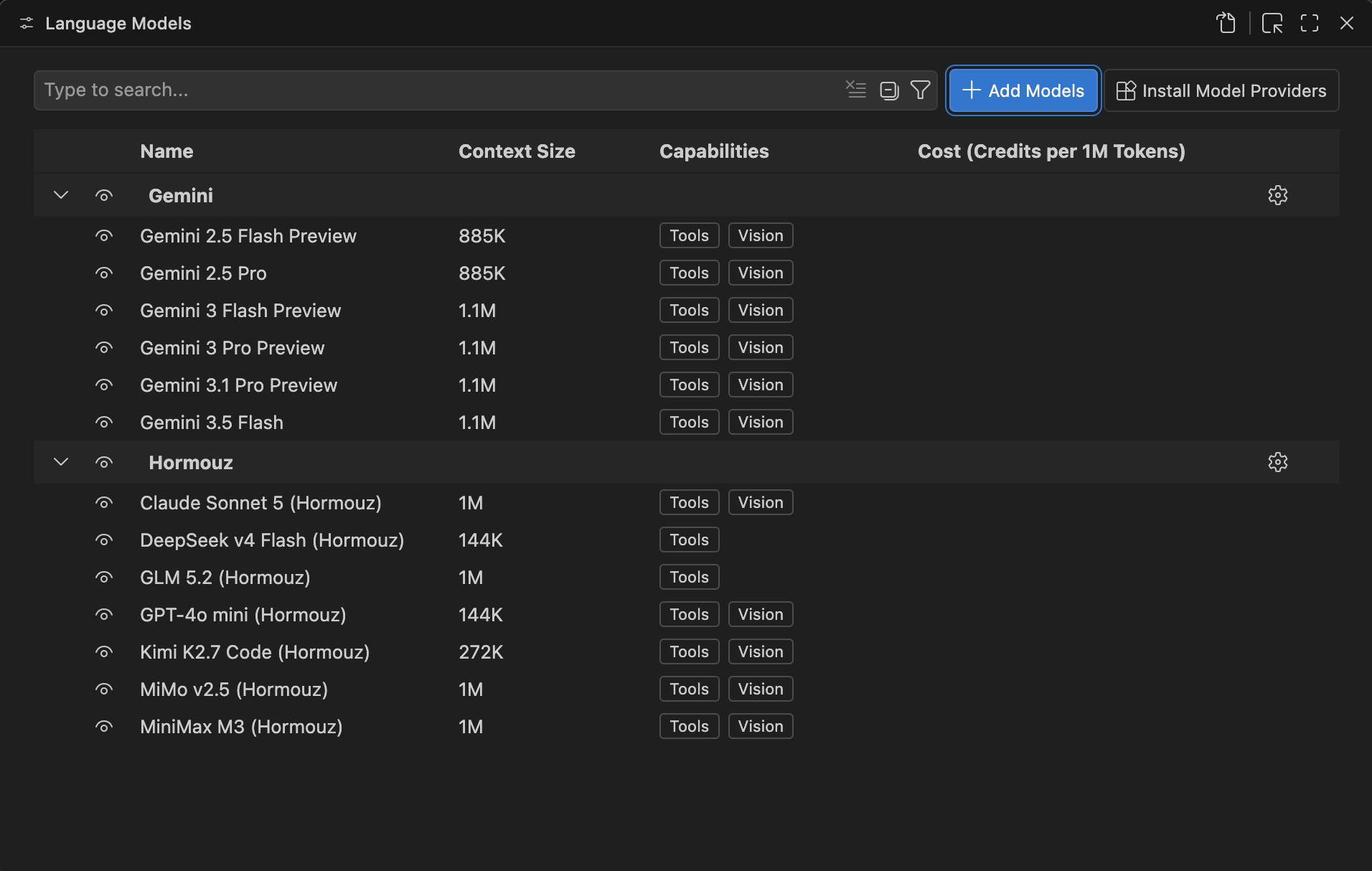
Step 2. Pick the "Custom Endpoint" provider. In the provider dropdown choose Custom Endpoint (the OpenAI-compatible option). Do not pick "OpenAI". That entry is hardwired to OpenAI's own servers. If the dropdown has no "Custom Endpoint" entry, update VS Code and reopen it.
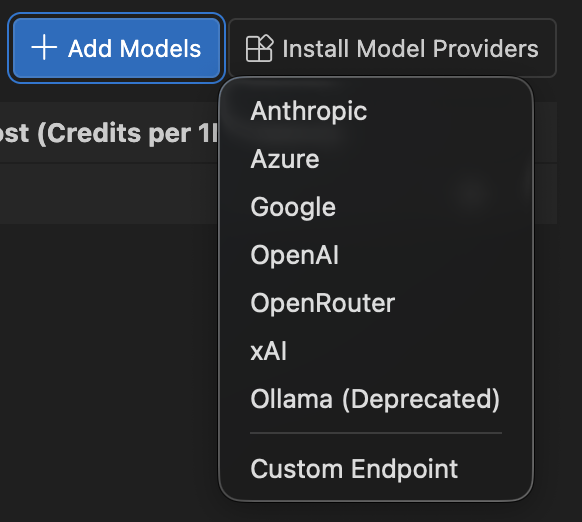
Step 3. Enter your API key, then declare your models. VS Code prompts for the API key first (stored securely as a secret), then opens chatLanguageModels.json with an empty scaffold. Fill one entry per model. url is the full chat-completions URL, identical on every model; id is the exact Hormouz model id (vendor/name):
{
    "name": "Hormouz",
    "vendor": "customendpoint",
    "apiKey": "${input:chat.lm.secret.XXXXXXXX}",
    "apiType": "chat-completions",
    "models": [
        {
            "id": "anthropic/claude-sonnet-5",
            "name": "Claude Sonnet 5 (Hormouz)",
            "url": "https://api.hormouz.net/v1/chat/completions",
            "toolCalling": true,
            "vision": true,
            "maxInputTokens": 1000000,
            "maxOutputTokens": 16000
        },
        {
            "id": "z-ai/glm-5.2",
            "name": "GLM 5.2 (Hormouz)",
            "url": "https://api.hormouz.net/v1/chat/completions",
            "toolCalling": true,
            "vision": false,
            "maxInputTokens": 1000000,
            "maxOutputTokens": 16000
        },
        {
            "id": "moonshotai/kimi-k2.7-code",
            "name": "Kimi K2.7 Code (Hormouz)",
            "url": "https://api.hormouz.net/v1/chat/completions",
            "toolCalling": true,
            "vision": true,
            "maxInputTokens": 256000,
            "maxOutputTokens": 16000
        },
        {
            "id": "minimax/minimax-m3",
            "name": "MiniMax M3 (Hormouz)",
            "url": "https://api.hormouz.net/v1/chat/completions",
            "toolCalling": true,
            "vision": true,
            "maxInputTokens": 1000000,
            "maxOutputTokens": 16000
        },
        {
            "id": "xiaomi/mimo-v2.5",
            "name": "MiMo v2.5 (Hormouz)",
            "url": "https://api.hormouz.net/v1/chat/completions",
            "toolCalling": true,
            "vision": true,
            "maxInputTokens": 1000000,
            "maxOutputTokens": 16000
        },
        {
            "id": "openai/gpt-4o-mini",
            "name": "GPT-4o mini (Hormouz)",
            "url": "https://api.hormouz.net/v1/chat/completions",
            "toolCalling": true,
            "vision": true,
            "maxInputTokens": 128000,
            "maxOutputTokens": 16000
        }
    ]
}
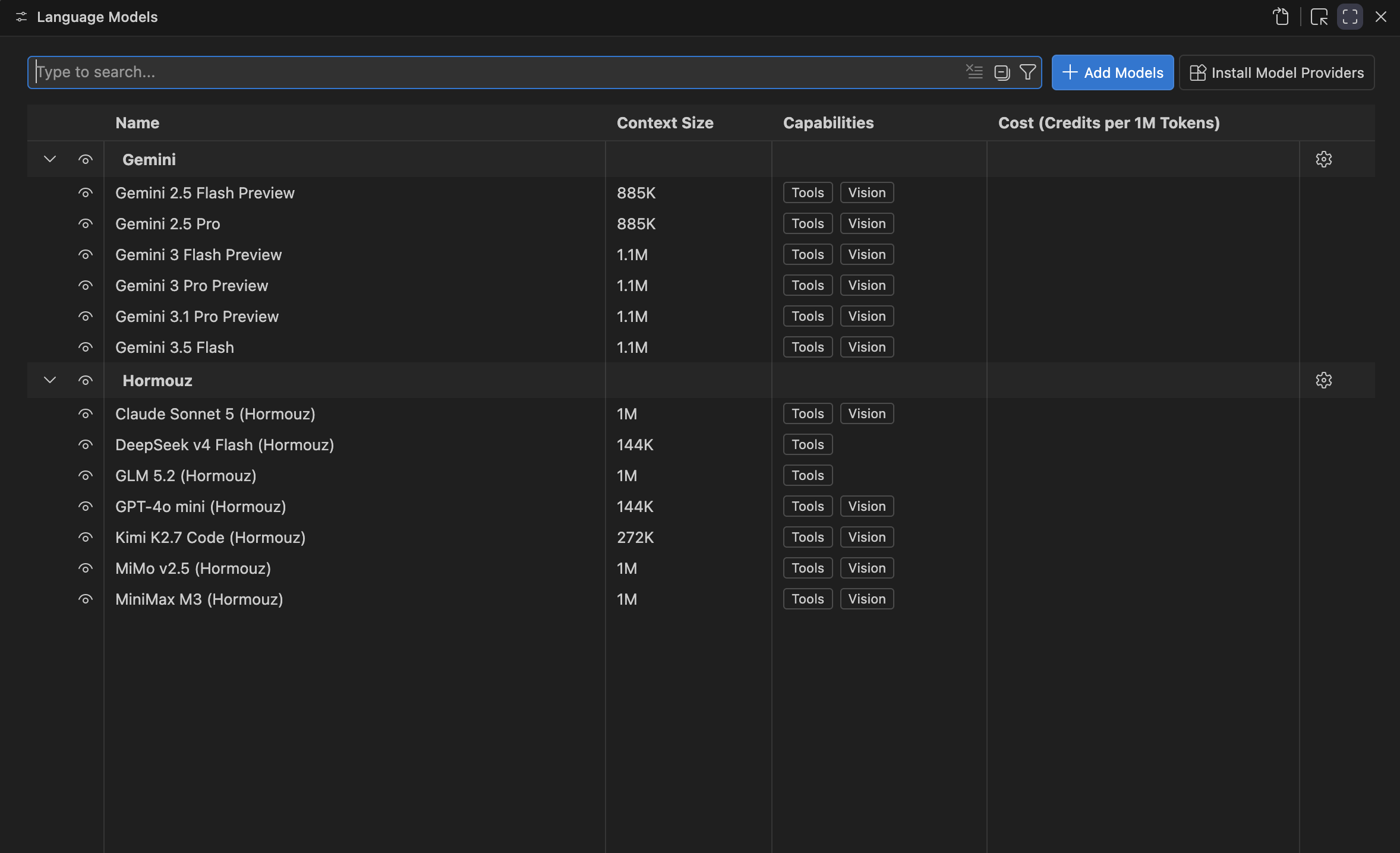
Leave the generated apiKey secret reference as-is. toolCalling/vision per model. GET /v1/models reports supports_tools and supports_vision for each model if unsure. After saving, the manager shows a Hormouz group with every declared model:
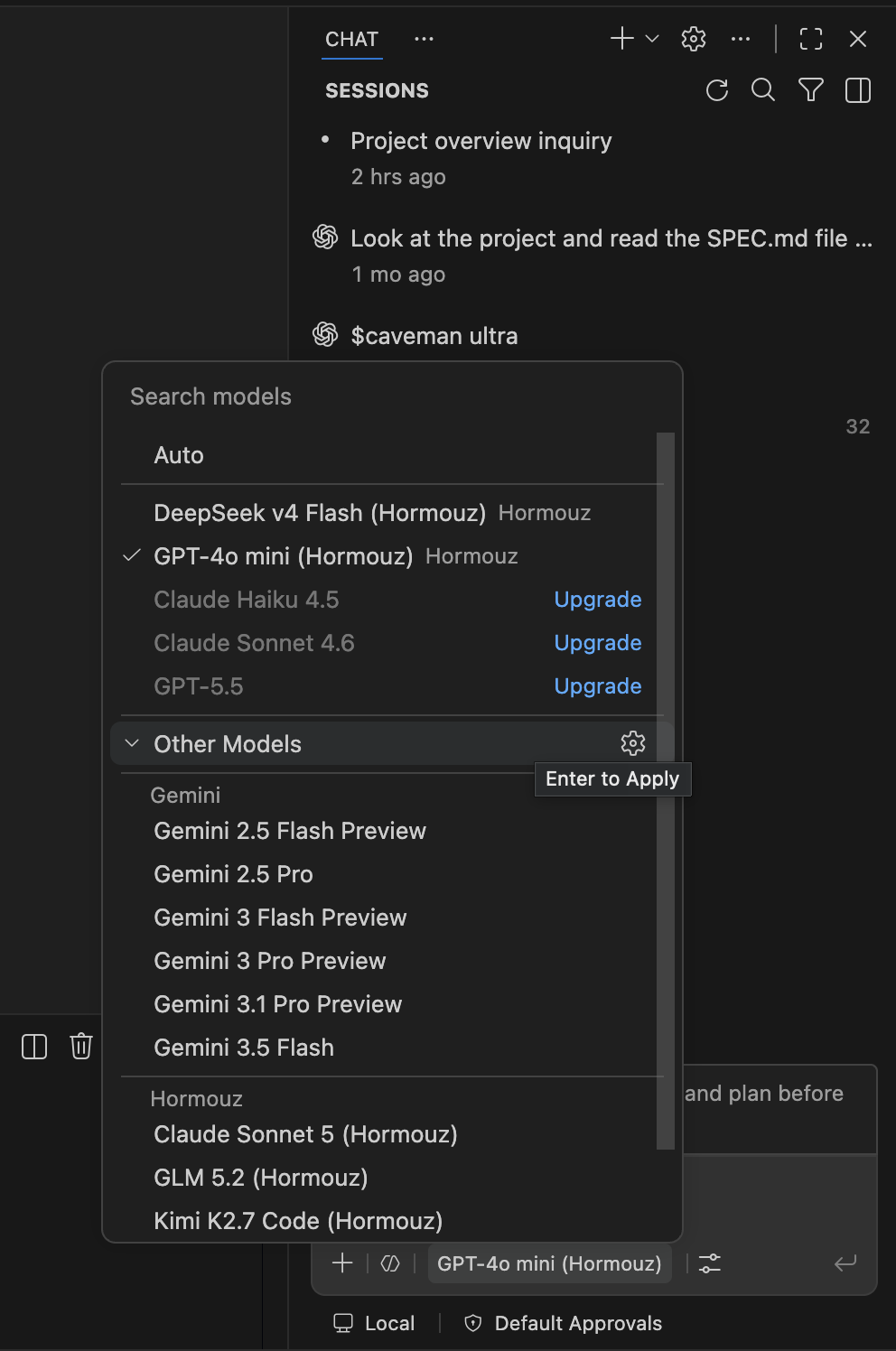
Step 4. Pick the model and chat. Open the Copilot Chat panel, click the model picker at the bottom, choose your Hormouz model. Ask mode works immediately.
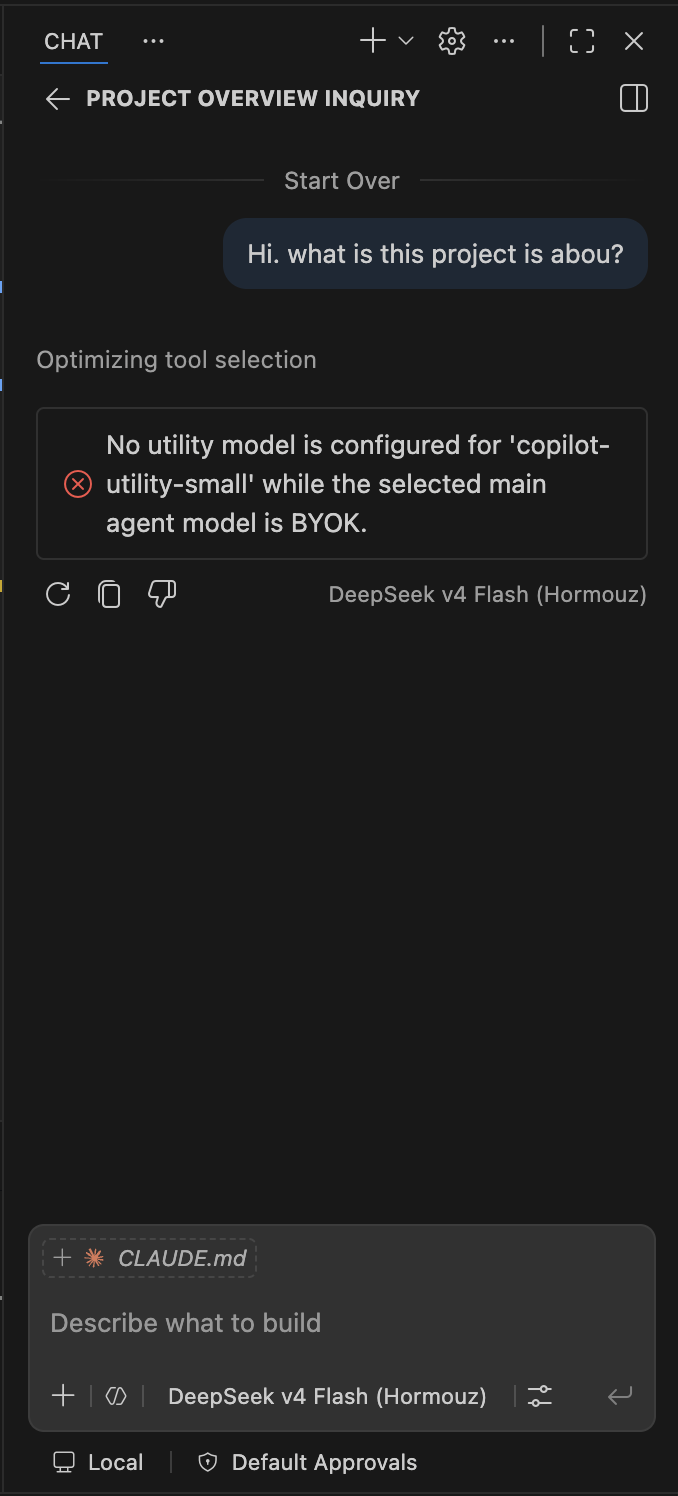
Step 5. One extra setting for Agent mode. Agent mode uses an additional small "utility" model. Without a Copilot plan the first agent request fails with "No utility model is configured for 'copilot-utility-small' while the selected main agent model is BYOK."
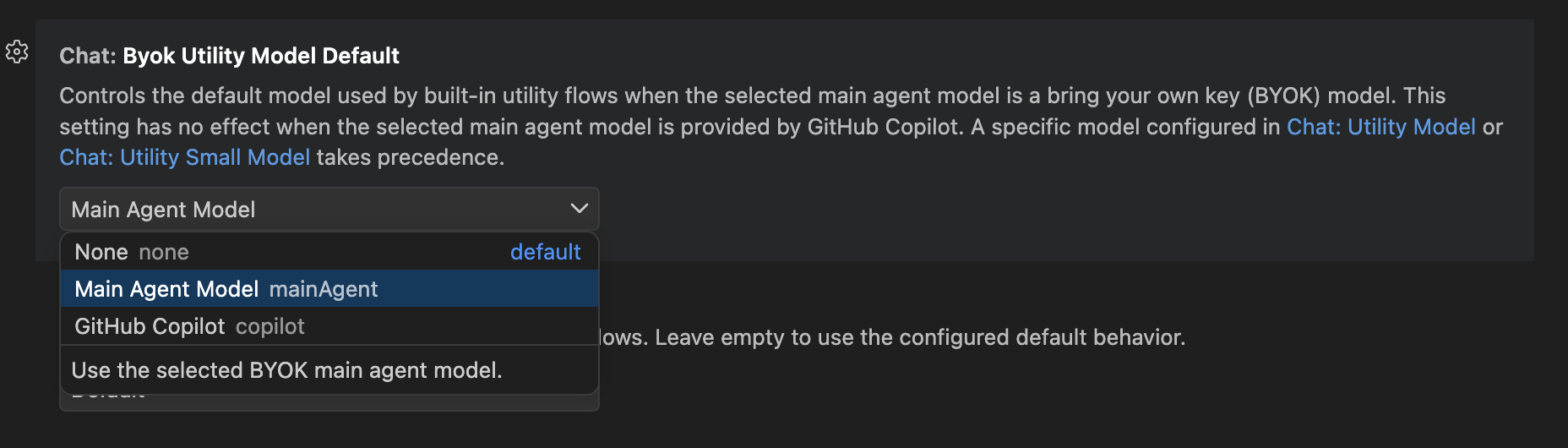
Fix once: Settings (Cmd+,) → search utility → set Chat: Byok Utility Model Default from None to Main Agent Model. Utility flows then run through the same Hormouz model you selected. Each agent turn may issue more than one API request, which is normal.
ZCode
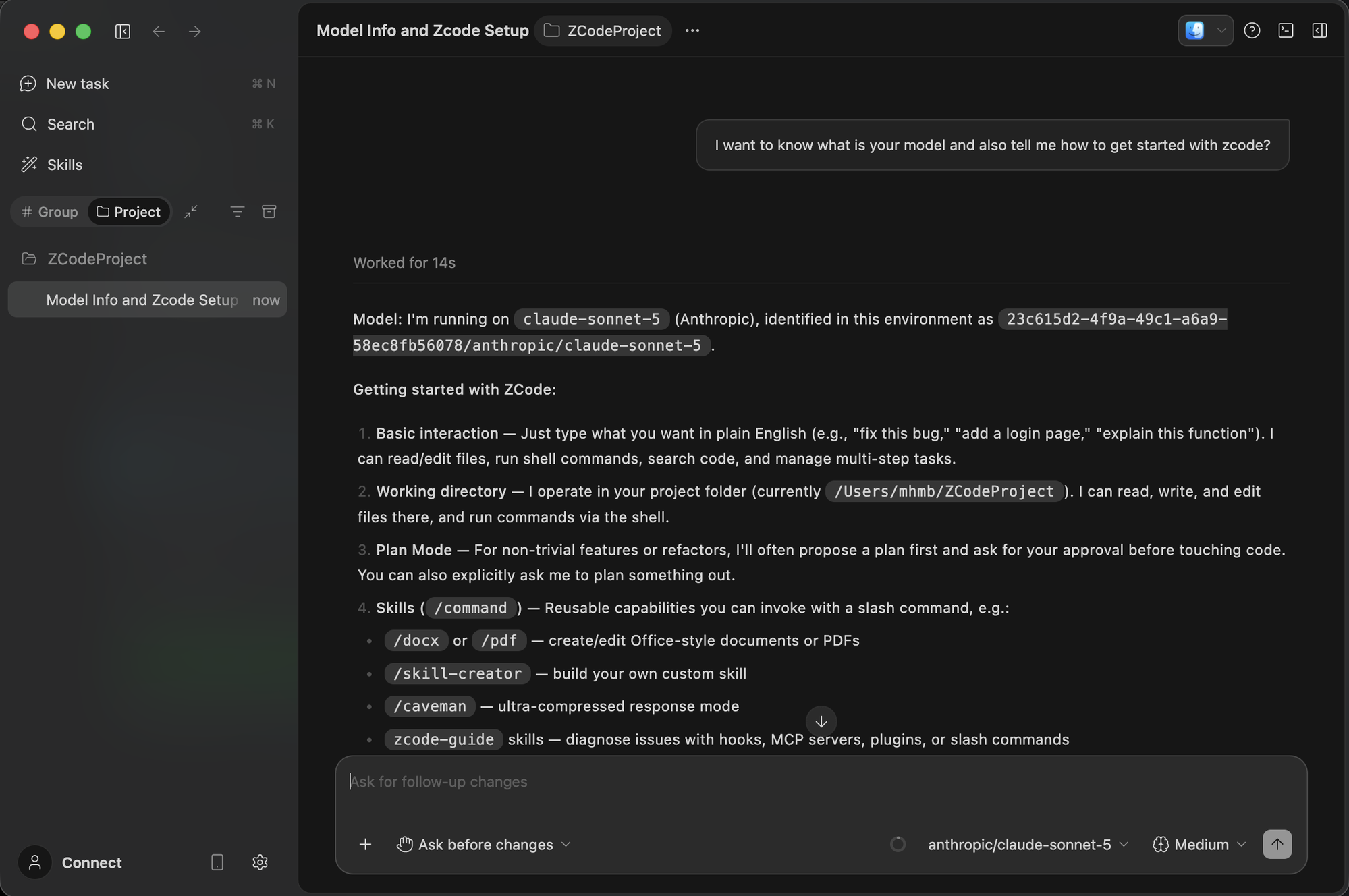
ZCode is a desktop agentic editor with native OpenAI-compatible custom providers. Chat and agent mode. Calls go directly from your machine to Hormouz.
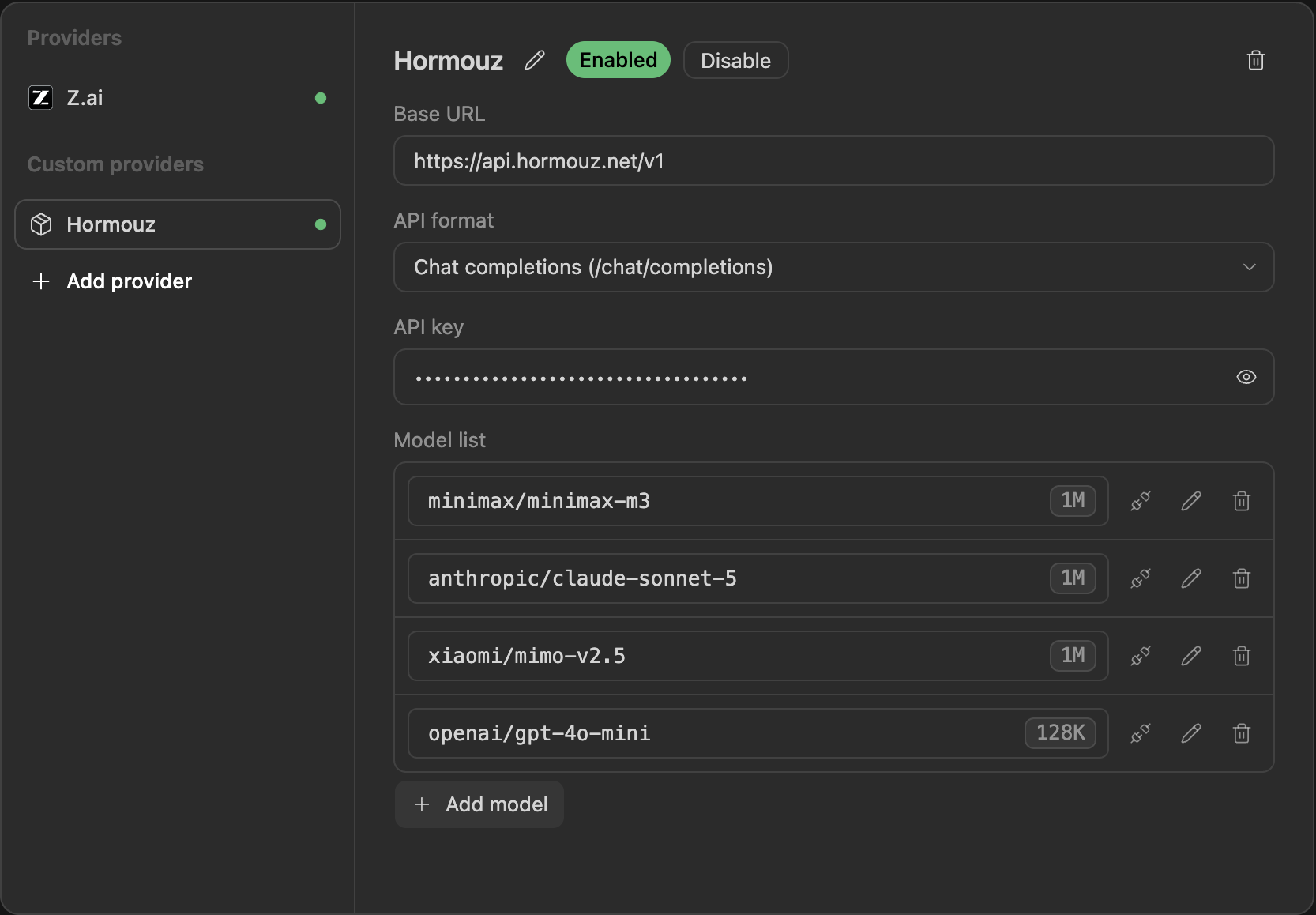
Step 1. Add the provider. Settings (bottom-left gear) → Model settings → Add provider:
- Name:
Hormouz - Base URL:
https://api.hormouz.net/v1 - API format: Chat completions (
/chat/completions) - API key: your
ng-...key
Then + Add model once per model. Full vendor/name id + its context window (e.g. z-ai/glm-5.2 1000000, anthropic/claude-sonnet-5 1000000, moonshotai/kimi-k2.7-code 256000, openai/gpt-4o-mini 128000). Save. The provider shows Enabled.
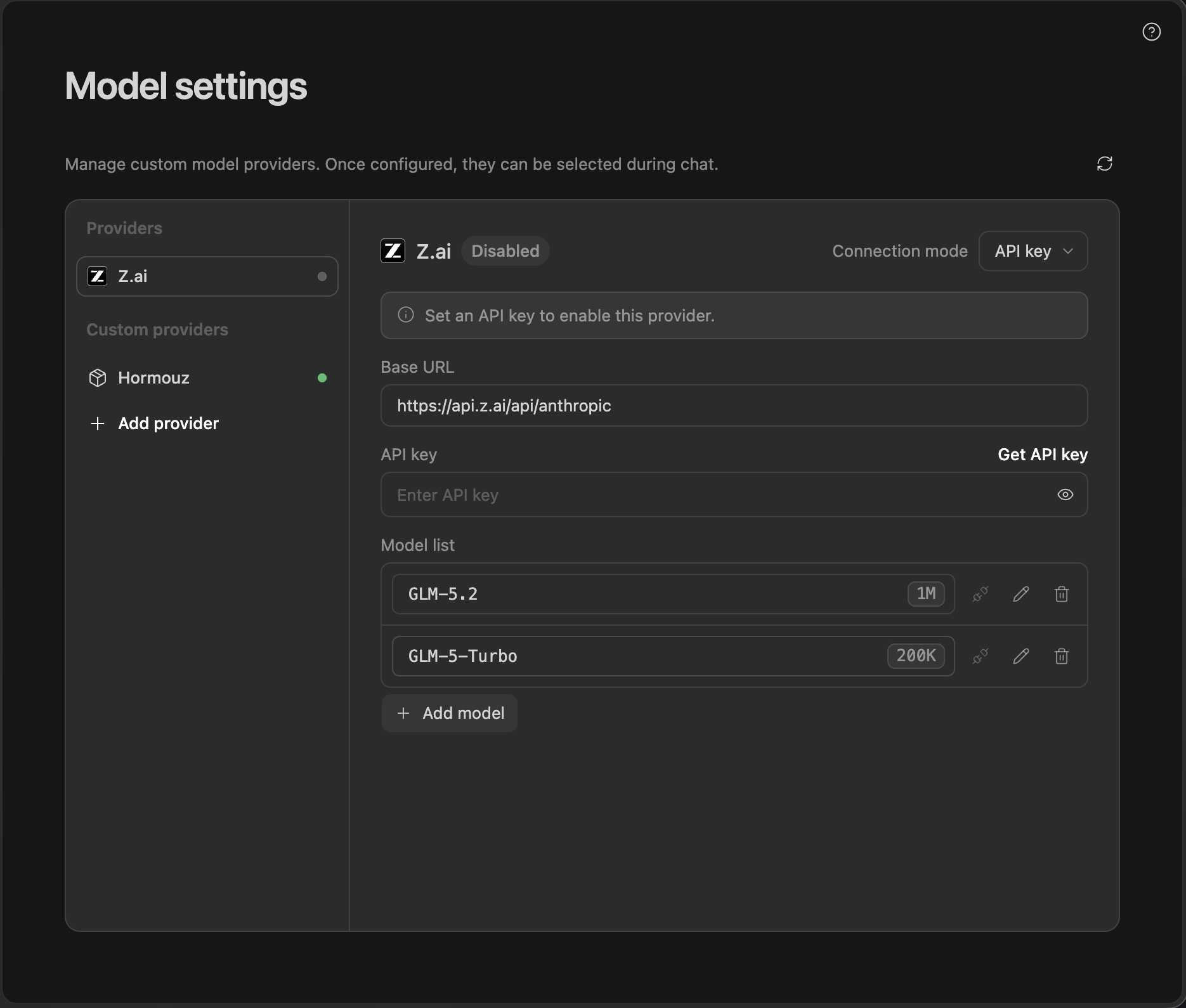
Step 2. Disable the built-in Z.ai provider (required if you have no Z.ai account). ZCode's agent tries to mount its built-in Z.ai/GLM plan at startup. If that plan is enabled but not connected, the whole agent fails with "Model config is missing. Create ~/.zcode/cli/config.json …" (provider=glm, reason=mount). Fix it: Model settings → Z.ai → Connection mode → API key and leave the key blank. Z.ai flips to Disabled and the agent falls through to your Hormouz provider.
Step 3. Use it. Back to workspace → open a chat → pick a Hormouz model in the selector → send a prompt. Agent mode works too: it reads files, runs commands, and edits.
Cursor
Cursor's custom-endpoint support is the most limited of the three, for reasons on Cursor's side: it routes every request through Cursor's own cloud servers (not directly from your machine); since mid-2026 its Agent and Edit features are blocked for custom keys. A custom endpoint powers the Ask/Chat panel only; and there is a known bug where enabling the base-URL override can break Cursor's own built-in models until you toggle it off.
Recommended: use the Cline (or Continue) extension inside Cursor. Cursor runs VS Code extensions; Cline and Continue call Hormouz directly from your machine, support the full agent loop, and avoid all three limitations:
- Extensions panel → install Cline (or Continue).
- In the extension's provider settings choose OpenAI Compatible.
- Base URL
https://api.hormouz.net/v1, API keyng-..., model idvendor/name(e.g.anthropic/claude-sonnet-5).
Native Cursor (chat panel only): Cursor Settings → Models → Override OpenAI Base URL = https://api.hormouz.net/v1 → paste your key in the OpenAI API Key field (the label says OpenAI, but the key is sent to the URL you configured) → + Add Model → type the exact Hormouz model id → Verify. If Verify succeeds, select the model in the chat panel (Cmd+L). Toggle the override off when you want Cursor's native models.
Cline (any VS Code editor)
Cline is an extension rather than an editor, so it behaves the same inside VS Code, Cursor, and any VS Code fork. It calls Hormouz directly from your machine and drives the full agent loop, which makes it the shortest path when an editor's own custom-endpoint support is limited.
Step 1. Install it. Extensions panel, search Cline. Details and other install routes are at cline.bot.
Step 2. Point it at Hormouz. Open the Cline settings panel (the gear icon) and set:
- API Provider:
OpenAI Compatible - Base URL:
https://api.hormouz.net/v1 - API Key: your
ng-...key - Model: the full
vendor/nameid, for exampleanthropic/claude-sonnet-5
Do not pick the plain OpenAI provider. That entry is wired to OpenAI's own servers and ignores the base URL you set.
JetBrains IDEs (AI Assistant)
Works in every JetBrains IDE through the AI Assistant plugin: IntelliJ IDEA, PyCharm, GoLand, WebStorm, Rider and the rest. AI Assistant lists OpenAI-compatible as a provider of its own, alongside OpenAI and Anthropic.
Step 1. Install AI Assistant. Settings, Plugins, Marketplace, AI Assistant. Restart the IDE afterwards.
Step 2. Add Hormouz as the provider. Settings, Tools, AI Assistant, then the third-party providers section. Choose OpenAI-compatible and fill in:
- URL:
https://api.hormouz.net/v1 - API Key: your
ng-...key
AI Assistant asks the endpoint for its own model list, so the ids populate once the connection is accepted. If the list stays empty, the base URL is the first thing to check: it has to end in /v1 exactly, with no trailing slash.
opencode (terminal)
opencode is a terminal agent rather than an editor, so it sits next to whatever you already use. It runs on macOS, Linux and Windows, and custom providers live in its config file.
Step 1. Install it. On macOS or Linux:
curl -fsSL https://opencode.ai/install | bash
On Windows, install Node.js (the LTS version) first, then run this in PowerShell. scoop install opencode and choco install opencode work too:
npm install -g opencode-ai
Close and reopen the terminal, then check the install with opencode --version.
Step 2. Create the config file. opencode reads ~/.config/opencode/opencode.json. On macOS or Linux:
mkdir -p ~/.config/opencode
nano ~/.config/opencode/opencode.json
On Windows the same folder sits under your user profile. In PowerShell:
New-Item -ItemType Directory -Force "$HOME\.config\opencode"
notepad "$HOME\.config\opencode\opencode.json"
To use Hormouz in one project only, put an opencode.json in that project's root instead.
Step 3. Paste the config and add your key. Replace ng-your-key-here with your key from API Keys in the dashboard. model is the one opencode starts with. small_model does background jobs such as naming your sessions, so point it at a Hormouz model too and those requests also go through your key.
{
  "$schema": "https://opencode.ai/config.json",
  "provider": {
    "hormouz": {
      "npm": "@ai-sdk/openai-compatible",
      "name": "Hormouz",
      "options": {
        "baseURL": "https://api.hormouz.net/v1",
        "apiKey": "ng-your-key-here"
      },
      "models": {
        "z-ai/glm-5.2": {
          "name": "GLM 5.2",
          "tool_call": true,
          "limit": { "context": 1048576, "output": 16000 }
        },
        "moonshotai/kimi-k2.7-code": {
          "name": "Kimi K2.7 Code",
          "tool_call": true,
          "limit": { "context": 262144, "output": 16000 }
        },
        "anthropic/claude-sonnet-5": {
          "name": "Claude Sonnet 5",
          "tool_call": true,
          "limit": { "context": 1000000, "output": 16000 }
        }
      }
    }
  },
  "model": "hormouz/z-ai/glm-5.2",
  "small_model": "hormouz/z-ai/glm-5.2"
}
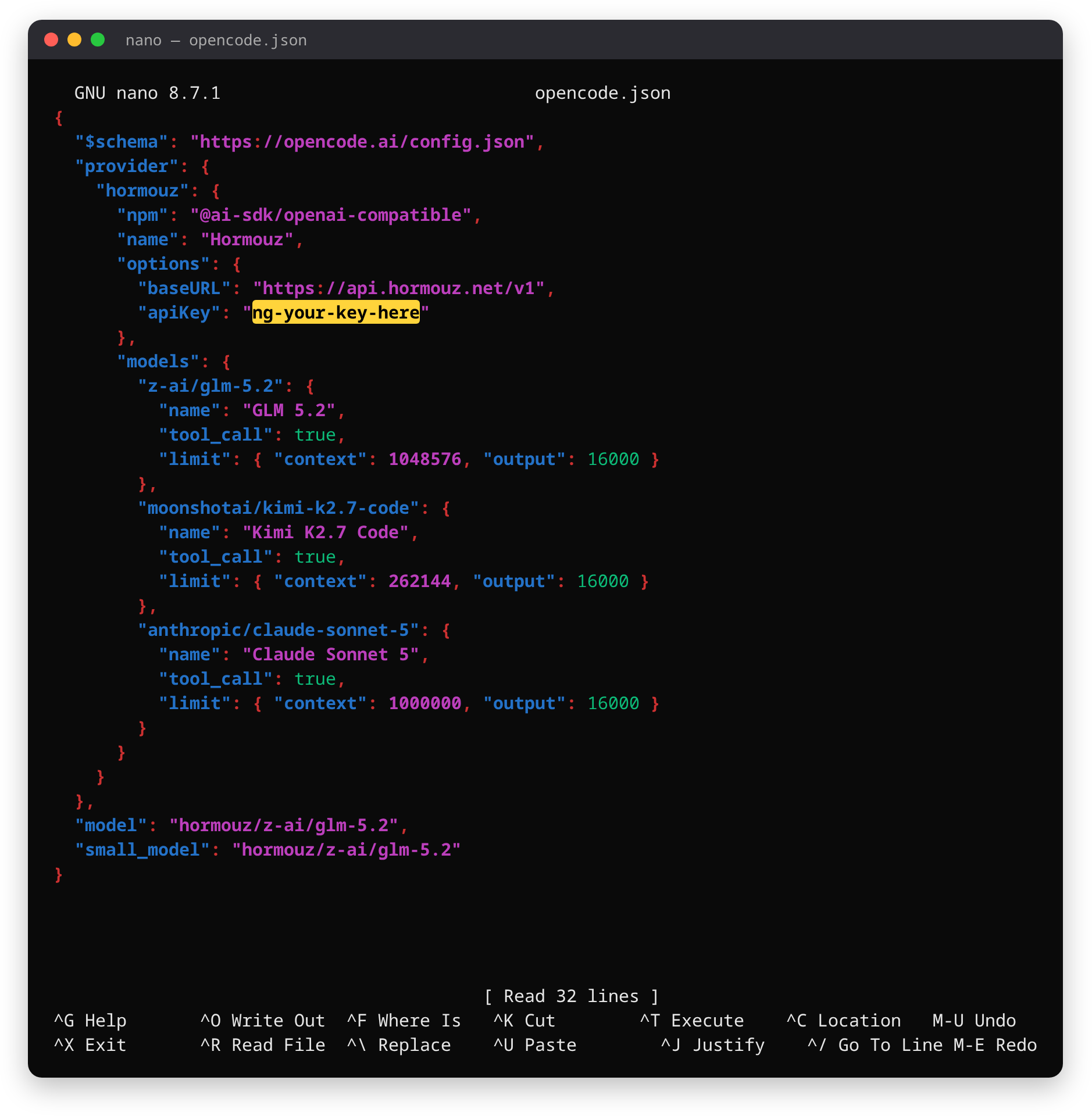
Save the file. It holds your key, so on macOS or Linux make it readable only by you: chmod 600 ~/.config/opencode/opencode.json.
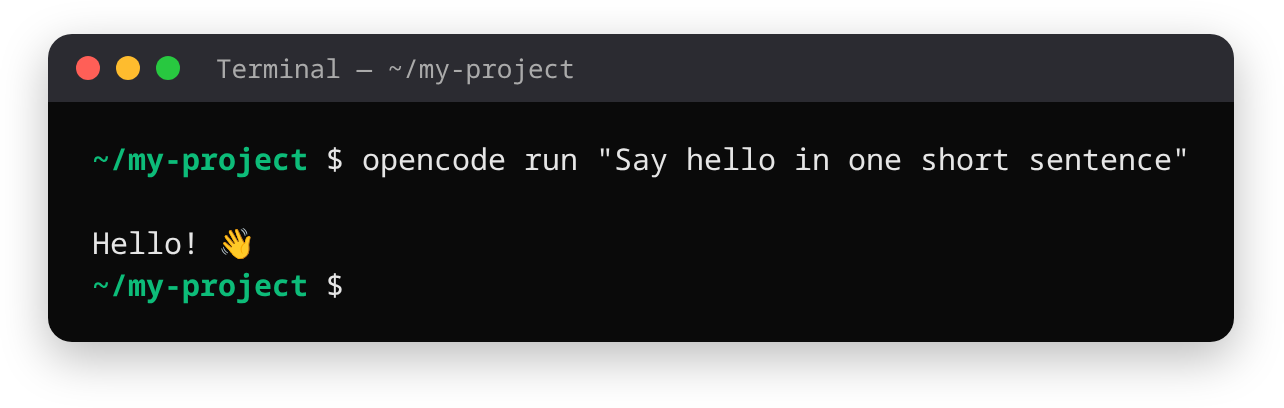
Step 4. Test the connection. From any folder:
opencode run "Say hello"
A reply means the key, the address and the model all work.
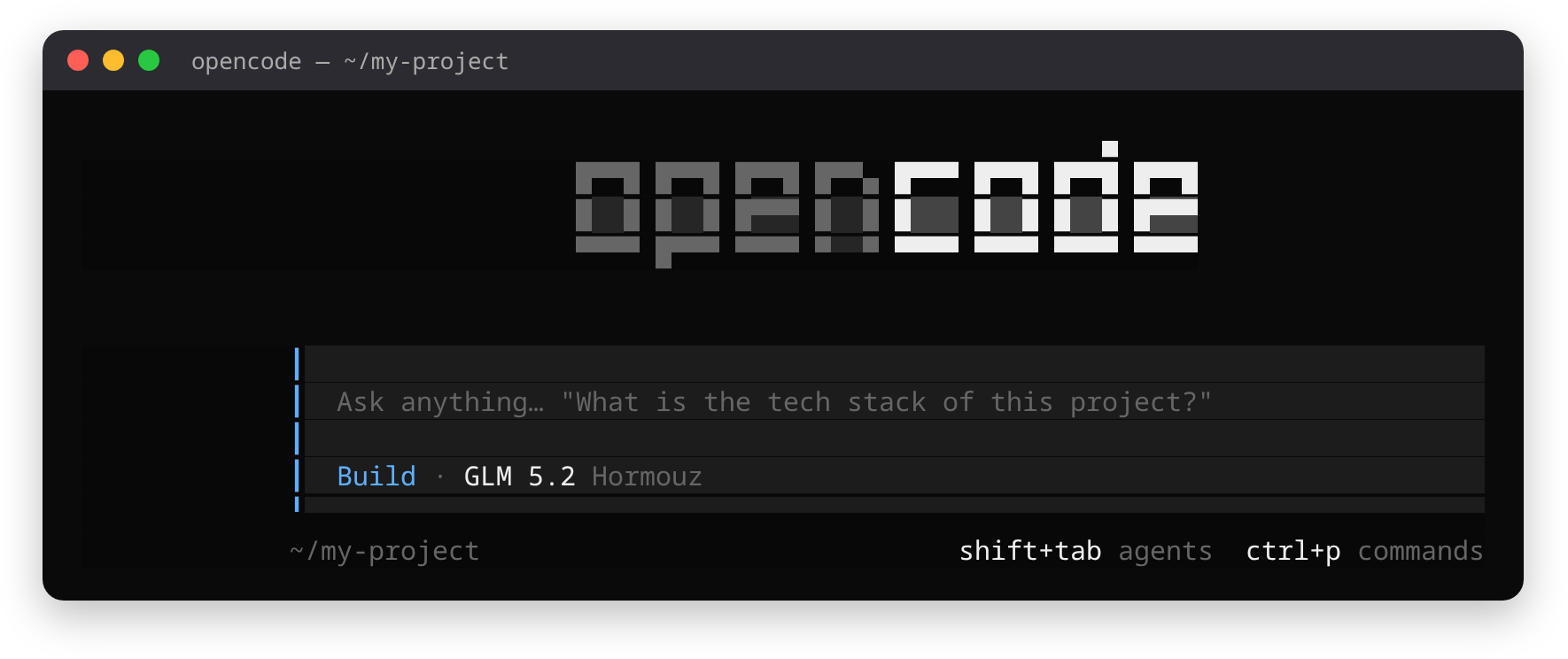
Step 5. Start opencode in your project. Go into the project folder and run opencode. The line under the prompt shows the active model with Hormouz next to it.
cd my-project
opencode
Step 6. Switch models. Type /models inside opencode. Your Hormouz models appear under the name you gave them, after opencode's own built-in free models. To add a model, add one entry under models with the exact id from GET /v1/models (including the leading ~ on rolling aliases) and its context length from the same list.
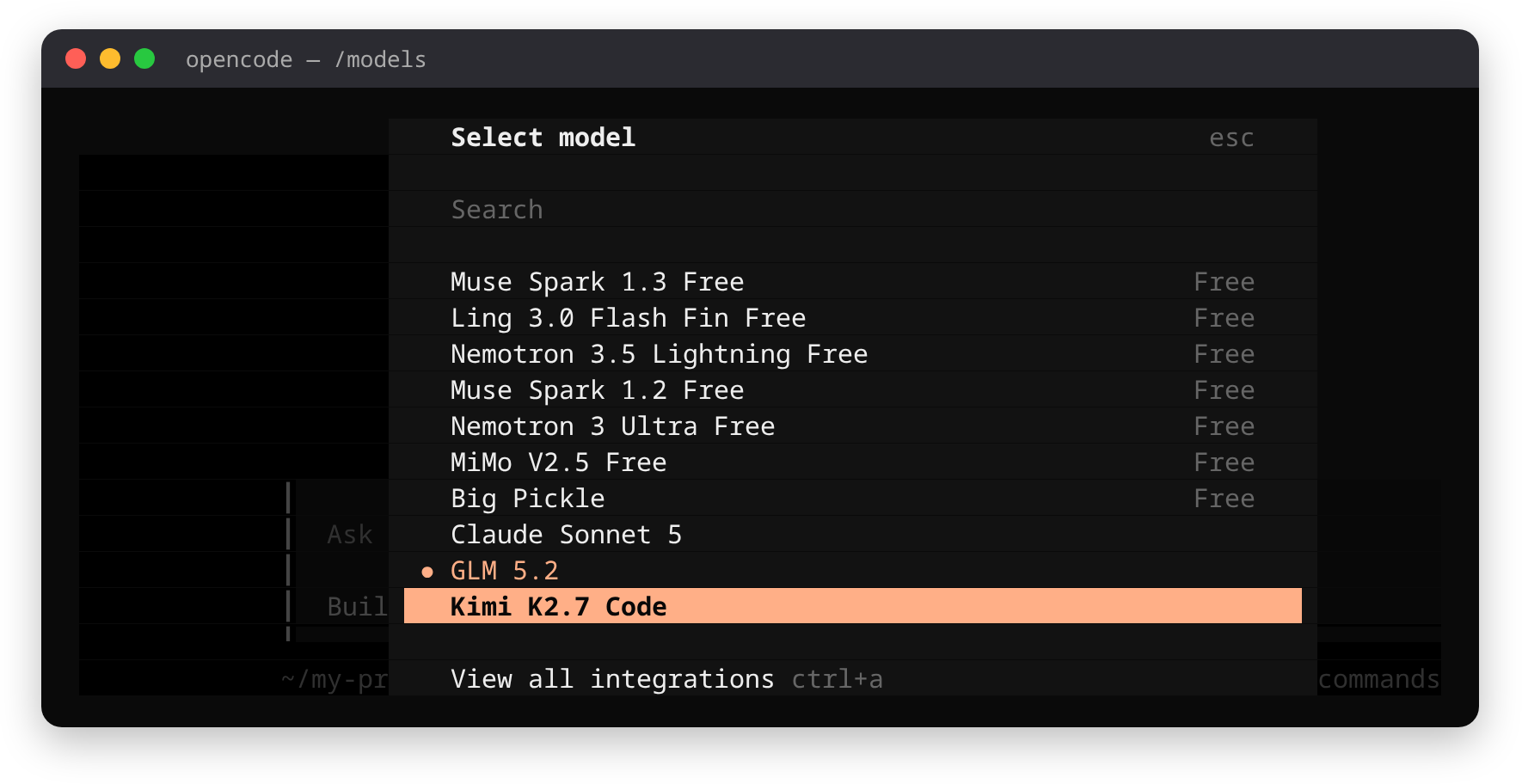
"Missing Authorization header" means apiKey is empty or still the placeholder. If the opencode command is not found after installing, open a new terminal. On Windows, if PowerShell says running scripts is disabled, run Set-ExecutionPolicy -Scope CurrentUser RemoteSigned once and try again.
Neovim (CodeCompanion)
Neovim ships no AI client of its own, so this runs through a plugin. codecompanion.nvim has an openai_compatible adapter, which is all Hormouz needs.
Add the adapter wherever your plugin manager keeps its config:
require("codecompanion").setup({
  adapters = {
    http = {
      hormouz = function()
        return require("codecompanion.adapters").extend("openai_compatible", {
          env = {
            url = "https://api.hormouz.net",
            api_key = "HORMOUZ_API_KEY",
            chat_url = "/v1/chat/completions",
          },
        })
      end,
    },
  },
  strategies = {
    chat = { adapter = "hormouz" },
    inline = { adapter = "hormouz" },
  },
})
Two things differ here from every other editor on this page. url is the origin with no /v1, because chat_url already carries that path: putting /v1 in both produces /v1/v1/chat/completions and a 404. And api_key is the name of an environment variable, not the key itself, so export HORMOUZ_API_KEY in your shell.
Troubleshooting (all editors)
| Symptom | Likely cause | Fix |
|---|---|---|
| Model list won't load / "failed to fetch models" | Base URL wrong | Use exactly https://api.hormouz.net/v1 |
| 401 Unauthorized | Bad or rotated key | Check the key in the dashboard; the error body carries "type":"authentication_error" |
| "Model not found" | Bare model name | Use the full vendor/name id from GET /v1/models |
402 INSUFFICIENT_CREDITS | Balance empty | Top up: the message itself carries the billing link, and the body carries "type":"insufficient_quota" |
429 with "type":"rate_limit_error" | Burst of parallel requests | Retry with backoff (OpenAI SDKs do this automatically) |
| Times out only inside the IDE (curl works) | IDE traffic riding a VPN/proxy that exits abroad | Route api.hormouz.net outside the tunnel |
Every Hormouz error response is JSON shaped like {"error":{"code","message","status","type"}}. The type field matches OpenAI conventions so SDK-based tools classify failures correctly. Full catalogue: errors.
FAQ
- Which editors work with Hormouz?
Any tool that accepts an OpenAI-compatible base URL. This guide walks through VS Code (Copilot BYOK), ZCode, Cursor's chat panel, Cline, JetBrains AI Assistant, opencode and Neovim; Continue and Zed work the same way. Set the base URL to
https://api.hormouz.net/v1and use yourng-...key (Neovim is the one exception: it takes the address without/v1).- Do I need a GitHub Copilot subscription for VS Code?
No. BYOK models work without a Copilot plan. Chat, edits, and agent mode all run on your Hormouz key. Only inline tab-completion stays on Copilot's own service.
- Why does my hand-typed model name fail?
Use the full
vendor/nameid (for exampleopenai/gpt-4o-mini, notgpt-4o-mini). The catalogue atGET /v1/modelsshows the exact ids. Common bare names are auto-corrected, but the full id always works.